


Page 52 - Photoshop User January 2017
P. 52
052
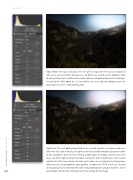
Step Three: Next up is to balance the rest of the image with the massive amount of light we’ve just put into the overall scene. To do this we need to use the Exposure slider to darken things a bit, matching the relative darkness of golden hour on the landscape. I’ve pulled the slider down to –2.3 to really let the scene go into shadow, much like you’d expect to see in early morning light.
Step Four: The next golden-hour attribute we need to simulate is a warmer ambience. When the sun is low in the sky, the light has to travel laterally through a far greater depth of our atmosphere than if it were shining straight down at midday, and this causes the bluer end of the light spectrum to scatter, leaving the more reddish tones. We need to replicate this effect in our image. To warm up the tones, we need to raise the Temperature slider to a nice, natural-looking, warm position. I’ve gone for 7765K in this case. As with all retouching, bear in mind that the sliders should normally be used conservatively. Take it up and down little by little until you reach the best look for the image.
HOW TO ››
› › photoshop user › january 2017


