


Page 54 - Photoshop User January 2017
P. 54
HOW TO ››
054
CLICK TO RATE
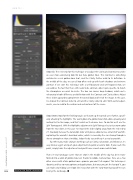
Step Six: The next step for this technique is to adjust the Clarity and Contrast to create an even more convincing look for our fake golden hour. This Contrast is something matched in a real golden-hour shot, and the Clarity further adds to its definition. In the middle of the day, we can all too often end up with harsh shadows and extreme contrast. If we start this technique with a well-balanced and well-exposed shot, we can address the fact that there still needs to be contrast, albeit quite specific, to match the atmosphere we want to create. The low sun causes long shadows, which we’re enhancing in both difference and definition with the Contrast and Clarity sliders. Adjust these sliders upward to complement the overall look and feel of the image. In this case, I’ve moved the Contrast slider to +30 and the Clarity slider to +40. With careful adjust- ments, we can add to the realism and enchantment of the scene.
Step Seven: Now for the finishing touch, we’ll warm up the overall scene further, specifi- cally attacking the highlights. The warm glow of a golden-hour shot adds a pleasing and inviting feel to the image, and that’s what we’ll enhance here. To do this we’ll use the Split Toning panel. With the Highlights adjustment in Split Toning, select a nice warm color from the Hue slider; in this case I’ve moved the slider slightly away from the red end to 27. Gradually increase the Saturation slider until you’ve added a nice extra bit of warmth, replicating the warmth I described earlier, which is caused by the sun shining through a denser atmosphere than at midday. Judge this by eye and keep it as real as possible.
Tip: When you make changes to things such as Clarity, Saturation, and Vibrance, it’s easy to over-egg it and push your adjustments beyond a realistic look. If you reach this point, simply halve the adjustment and you’ll have a much more realistic look.
That’s it! Our landscape scene that we shot in the middle of the day has been trans- formed into a work of golden-hour art, thanks to Adobe Camera Raw. Here are a few other scenes with a fake golden hour—promise you won’t tell anyone! This technique is dynamic and has so many options and applications, but once you get the hang of it, you can make any midday scene look like it was shot with the early-morning rays of the sun kissing the landscape. ■
› › photoshop user › january 2017


