


Page 51 - Photoshop User January 2017
P. 51
› › DYNAMIC RANGE
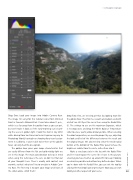
Step One: Load your image into Adobe Camera Raw. The image I’m using for this tutorial is one from Olmsted Point in Yosemite National Park. It was taken about 1 p.m., which is as far away from the golden hour as you can get, but we’ll make it look as if the early-morning sun is bath- ing the scene in golden light. I took this shot in July 2016 while driving from San Francisco to Las Vegas on my way to Photoshop World, having been shooting for a travel assign- ment in California. I wasn’t able to be there at the golden hour, so I only had this one option.
The golden hour gives your image characteristics that are vastly different from the flat and cold midday light we see in this image. The main consideration to keep in mind when using this technique is the sun; so don’t let that out of your thoughts here. There’s usually wild contrast and warmth, so that’s what we’ll try to emulate in Adobe Cam- era Raw. The first step is to open your image and leave all the sliders alone. All of them!
Step Two: First, we need to get that sky looking more like the golden hour. That, for me, is warm and radiant, and with a bit of sun. We’ll put the sun in there using the Radial Filter (J). The settings to use are the maximum Exposure, which is +4 stops over, and drag the White Balance Temperature slider to a nice, warm yellow or orange tone. When selecting the color temperature, we need to gauge it by eye, adjusting the look and feel of the difference between the result and the original image. We also need to select the Inside radial button at the bottom of the Radial Filter panel to have the brightness radiate from the circle, rather than into it.
Make a very large circle in the sky with the Radial Filter
and let it overexpose the scene like I have in this picture, ensuring you have Feather up around 50 to keep it looking
as natural as possible and without any defined edges. When
you’re done with the Radial Filter, you can exit the tool by
clicking the Hand tool icon or pressing H. Now you can start
looking at other aspects of your scene. 051
› › kelbyone.com


