


Page 38 - Photoshop User January 2017
P. 38
HOW TO ››
Step Nine
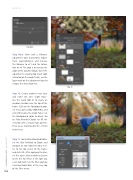
Step Nine: Next add a Vibrance adjustment layer (Layer>New Adjust- ment Layer>Vibrance) and increase the Vibrance to +21 and the Satura- tion to +4. The goal is to increase the color of the autumn foliage, but if the adjustment is creating too much color saturation on the model’s skin, use the layer mask on the adjustment layer to remove the effect from her.
Step 10: Create another new layer and name this one “Light Rays.” Use the Lasso tool (L) to create an irregular selection near the top of the frame. Click on the Foreground color, set it to a pale yellow (#d9d19c), and click OK to close the Color Picker. Set the Background color to black. Go to Filter>Render>Clouds to fill the selection with a fractal type pattern. Then, press Command-D (PC: Ctrl-D) to deselect.
Step 11: Go to Filter>Blur>Radial Blur; set the Blur Method to Zoom and Amount to 100. Move the Blur Cen- ter to the top center of the frame, and click OK. After applying the blur, set the layer’s blend mode to Screen to see the full effect. If the light rays seem too short, run the filter again by selecting Radial Blur at the very top of the Filter menu.
Step 10
038
› › photoshop user › january 2017


