


Page 29 - Photoshop User January 2017
P. 29
› › DOWN AND DIRTY TRICKS
Step 12
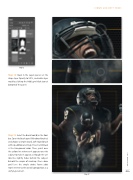
Step 12: Back in the Layers panel, set the shape layer Opacity to 50%, and add a layer mask by clicking the Add Layer Mask icon at bottom of the panel.
Step 13: Select the Brush tool (B) in the Tool- bar. Open the Brush panel (Window>Brushes) and choose a simple round, soft-edged brush with no additional settings. Press X until black is the Foreground color. Then, paint over the yellow line wherever it appears over the subject to make it appear as though the yel- low line slightly fades behind the subject. Behold the magic of masking. Once done you’ll see the simple stroke frame adds more interest to the overall composition as a unifying element.
029
Step 13
› › kelbyone.com


