


Page 35 - Lightroom Magazine Issue 26
P. 35
› › lightroom magazine › ›
plug-in
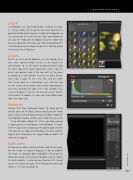
As Lightroom users, you’ll most likely be using X2 as a plug- in. A great number of the panels have been covered in a previous article about Exposure in Lightroom Magazine, so let’s concentrate on newer features. Open your photo(s) in X2 using the Photo>Edit In>Exposure X2 preset. Note that you can edit batches of images by Command-clicking (PC: Ctrl-clicking) to select multiple images in the filmstrip below the preview area in Exposure.
presets
Presets are the heart of Exposure, so even though these have been covered before, there’s a new batch here called Faded. To see the preset thumbnails better, drag the right edge of the panel toward the center. Click the preset grid options icon at the top right of the panel to toggle to a three-column view to see more thumb- nails. Click it again to see a list view, and one more time to get back to a two-column view. You can also use the search bar to narrow down results. Hovering over any preset previews the look in the main window. Click a preset to apply it. Click the star icon on a preset thumb- nail to add it to Favorite. I’ve gone for Sharp Warm High- lights here (top right).
histogram
Taking a leaf from Lightroom’s book, X2 allows you to change some of the Basic settings directly on the Histo- gram. Simply click-and-drag to change Shadows, Exposure, and Highlights. Double-click on each section to reset it to 0.
If you hold down Option (PC: Alt) as you drag, you get a clipping preview. For Exposure and Highlights, it’s black, with the clipped areas showing as the clipped color, or white if all channels are clipped. For Shadows, it’s white, with the clipped areas showing as the clipped color, or black if all channels are clipped.
basic panel
The Basic panel allows you to set a base look to the image. For this image I’ve boosted Exposure (1.09) to brighten the image. I’ve brought down Highlights (–41) to prevent blown-out details, and reduced Shadows (–14) to darken the blacks slightly. I’ve also increased Contrast (27). To add punch, I’ve increased Clarity (19) and improved color using Vibrance (17) and Saturation (6).
035
› › kelbyone.com


