


Page 34 - Lightroom Magazine Issue 26
P. 34
› › lightroom magazine › ›
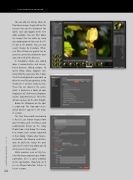
You can add star ratings, labels, or flags to any image. Simply click on the relevant item on the thumbnail. For labels, each click toggles to the next color available. You can filter down the images that are visible by using any combination of these on the Fil- ter bar at the bottom. You can also search images by metadata. What- ever filter settings are applied can be saved as a preset by clicking the gear icon at the left of the Filter bar.
In standalone mode, any editing done is nondestructive and remem- bered between editing sessions. To speed things along, Exposure uses Lossy DNG files as preview files. It does this in the background as you work, so often the next file you go to has a fully rendered 1:1 preview ready to view. These files are stored in the cache, which is located in a folder of your choosing in X2’s Preferences (Exposure X2 [PC: Edit]>Preferences). These files do take up space on the drive though.
Below the Histogram on the right is a tool strip. The Crop tool is here, which doesn’t appear in the plug- in version.
The final thing worth mentioning is that X2 can import images from your memory cards. Inserting a card automatically brings up the Copy Photos from Card dialog. The image here shows each section expanded in that dialog. Choose your Source, Destination, File Naming, and Meta- data to add here. Using the gear icons on the latter two allows you to create presets to use again.
While nowhere near as fully fea- tured for image organizing as Adobe Lightroom, X2 is a great addition to the application. Hopefully, we’ll see an Album/Collection feature in future versions.
034
› › lightroom magazine › issue 26


