


Page 72 - Photoshop User January 2017
P. 72
PHOTOSHOP EXPRESS
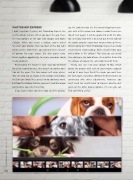
I didn’t mention it earlier, but Photoshop Express has a nifty collage feature. When you open the app, there are two options at the top: Edit Images and Make Collage. When you create a collage, you’re asked to select your photos, then tap Next at the top right of the screen. From there, you not only have a bunch of options for page layout, but also aspect ratio. Here’s another opportunity to create awesome social media graphics!
Rearranging the images is easy—just tap-and-hold for a few seconds on one, then drag it to another posi- tion on the page. The two images will swap places. You can also tap an image in the collage and choose the Edit icon (looks like a pencil) to do additional work, but from the Collage feature, you can’t send the image out to other apps like Fix or Mix.
If you want a more consistent look to all the photos,
tap the Looks button (it’s the two overlapping rectan- gles with a little arrow) and choose a color theme (see top of next page). It will be applied to all of the pho- tos. A sneaky trick here is to check out the far right of the Looks samples—your own images show up there. What’s going on? Well, Photoshop Express has kindly created basic Color Lookup Tables (CLUTs) from your own photos in the collage! That way you can spend time dialing in the look of one, then gather them into the collage and apply the same look to all of them.
Finally, you can send your collage to Mix, which opens the project with each of your images cropped and on its own layer. Do all the magic you want here on each layer, including adding blended textures or continuing with other adjustments; however, you can’t send the results back to Express directly—but given all the other output options, I’m sure you can find something useful!
072
› › photoshop user › january 2017
©Adobe Stock/otsphoto/Lindsay_Helms/Monkey Business


