


Page 58 - Photoshop User January 2017
P. 58
HOW TO ››
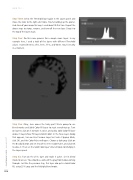
Step Three: Select the Threshold layer again in the Layers panel and move the slider to the right a bit more. You’re building up the poster- ized slices of your image this way. I used about 76 this time. Repeat the above steps to stamp, rename, and turn off the new layer. Drag it to the top of the layers stack.
Step Four: Do this same process for a couple more layers. In my example here, I used a total of five layers with different Threshold values. I named them 0, 25%, 50%, 75%, and White. You’ll see why in a moment.
Step Five: Okay, here comes the tricky part! We’re going to use blend modes and Solid Color fill layers to stack everything up. Turn on layer 0, click on it to make it active, and add a Solid Color fill layer above it (Layer>New Fill Layer>Solid Color). In the New Layer dialog that appears, turn on Use Previous Layer to Create Clipping Mask, click OK, and the Color Picker will open. Choose a dark gray (click on the B radial button and set it to 25%) in the Color Picker, and click OK to close it. Then set the Solid Color layer’s blend mode to Multiply in the Layers panel.
Step Six: Turn on the 25% layer and make it active. Set its blend mode to Screen. You should see some of the gray from below coming through. Just like the previous step, this layer also gets a Solid Color fill, using 25% gray and the Multiply blend mode.
058
› › photoshop user › january 2017


