


Page 45 - Photoshop User January 2017
P. 45
› › BEGINNERS' WORKSHOP
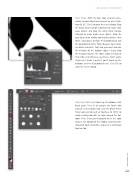
Step Three: With the Blue copy channel active, choose Image>Adjustments>Levels or press Com- mand-L (PC: Ctrl-L) to open the Levels dialog. Drag the black Input triangle rightward to make dark areas darker, and drag the white Input triangle leftward to make bright areas lighter. Drag the gray Input slider slightly rightward to darken mid- tones. Your goal is to make the balloons black and the background white. Why? Because layer masks use black and white. That said, you must maintain the integrity of the balloon edges—if you drag the triangles too far, the edges erode (settings of 154, 0.82, and 194 were used here). Don’t worry if you can’t make it perfect; you’ll touch up the balloons and the background next. Click OK to close the Levels dialog.
Step Four: First, we’ll touch up the balloons with black paint. Press B to activate the Brush tool (circled). In the Options Bar, click the Brush Preset Picker (also circled) and set Hardness to 100% to avoid creating too soft an edge around the bal- loons. Press D on your keyboard to set the color chips at the bottom of the Toolbar (circled) to the default of black and white, and press X until black hops on top.
045
› › kelbyone.com


