


Page 42 - Lightroom Magazine Issue 28
P. 42
› › lightroom magazine › ›
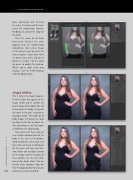
place consecutive pins to mark the arms, the torso, and the legs. Using this information, Portrait- Pro Body can change the shape of the body.
Once the curves of the body have been selected, the over- lapping areas are automatically highlighted. Click either image in the preview area to select the correct option. If you think there are other issues to fix, click on an option in section 5 of the Mark Up panel to modify the markup. When you’re done with your markup, click the Finish Markup and Edit Body button.
shape sliders
This is where the magic happens. The first sliders that appear, in the Shape Sliders panel, control the overall shape of the body. Slim will thin or widen the body; Curvy pulls the waist in (or out), creating an hourglass shape—this works on all body shapes; Lift brings the torso up closer to the face or down far- ther away from it; and Tall length- ens/shortens the whole body.
Once you’ve set these, you can then tweak individual parts of the body in the next set of options: Torso controls the chest, waist, and hips; Arms and Legs are obviously for the arms and legs; and Skel- eton allows you to adjust sections of the body. A prime example of these options are the Face Posi- tion or Hips Angle sliders. You can literally make someone look like they’re bopping along to music by
042 moving these back and forth.
› › lightroom magazine › issue 28


