


Page 25 - Lightroom Magazine Issue 28
P. 25
› › lightroom magazine › ›
the right side of the Collections panel’s header. From this menu, you can choose which tool you need and then you’ll be presented with the dialog for completing the process. Each tool has different options, so let’s look at each one in turn. I’ll create a collection set for my trip to Montana, then a collection to hold all of the photos from the trip, and finally a smart collection to automatically gather up my highest-rated photos from that collection. This process can be applied to any combination of collection sets, col- lections, and smart collections.
step one: Click the + (plus sign) at the right side of the Collections panel’s header and choose Create Collection Set.
step two: Give the collection set a name and choose if you want it to be placed inside an existing collection set.
In my case, I want it to go into my Travel collection set, so that’s selected from the pop-up menu. Click Create to add it to the Collections panel.
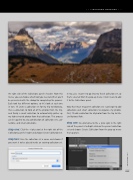
Now that I have my parent collection set, I can begin to add collections and smart collections to organize my photos. First, I’ll add a collection for all photos from the trip to Gla- cier National Park.
step one: An alternative to the + (plus sign) in the right side of the panel is to Right-click on the parent collection set and choose Create Collection from the pop-up menu that appears.
025
› › kelbyone.com


