


Page 26 - Lightroom Magazine Issue 28
P. 26
› › lightroom magazine › ›
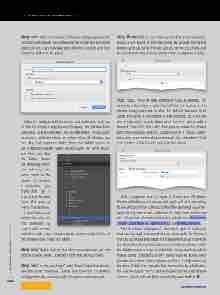
step two: When the Create Collection dialog appears, the Location will already be configured for inside the Montana collection set. I can now give this collection a name and click Create to add it to the panel.
Now I’m ready to add photos to that collection, and you do this by simply dragging-and-dropping the photos from Grid view to the collection. As an alternative, if you want to create a collection from an entire folder of photos, you can drag-and-drop the folder from the Folders panel to the Collections panel. Either option gives the same result, but when you drag
the folder down,
the resulting collec-
tion will have the
same name as the
folder. To rename
a collection, just
Right-click on it
and choose Rename
from the pop-up
menu that appears.
I now have a col-
lection set and my
first collection, so
I can create a smart
collection with a few simple rules to automatically find all of the photos I give a high star rating.
step one: Right-click on the Montana collection set and choose Create Smart Collection from the pop-up menu.
step two: In the resulting Create Smart Collection dialog, give the smart collection a name and note that it’s already configured to be created inside the parent collection set.
step three: Define your first rule. For this smart collection, I want a rule based on the star rating. By default, the Rating criteria came up as my first rule, so I just define the criteria and the number of stars. I chose greater than or equal to 4 stars.
step four: You can add additional rules, as needed. For example, I also want a rule that defines the source of the photos being searched or else the default behavior is to apply the rules to all photos in the catalog. So, click on the + (plus sign) box at the end of the first rule to add a second. Then click this rule’s first pop-up menu to choose from the available options. Under Source, I chose Collec- tion, and then entered the name of the collection I had just created. Click Create to put it into action.
Discuss this Issue
ALL IMAGES BY ROB SYLVAN
With my greater than or equal to 4 stars and All Glacier Photos collection as the source, as I apply a 4- or 5-star rating to any photos in that collection, they’ll be gathered automati- cally into my new smart collection. To learn how to harness the full power of smart collections, check out Mastering Smart Collections in Lightroom CC on KelbyOne.com.
This is a basic example of how each type of collection tool can be used, but one that I use frequently. In closing, I want to point out that aside from the benefits I’ve shown so far, the Collections panel appears in all other modules, while the Folders panel is only found in the Library module, which makes using collections a very handy way to access your photos no matter where you’re working in Lightroom at the time. Collections are also the mechanism by which pho- tos can be synced from Lightroom desktop to your mobile devices, which extends that accessibility even further. n
026
› › lightroom magazine › issue 28


