


Page 24 - Lightroom Magazine Issue 28
P. 24
› › lightroom magazine › ›
The Previous Import collection (it’ll say “Current” during an active import) will always show the last batch of photos to go through the import process (or the current active import). By default, when you start an import, the current view will switch to this collection and you’ll see the new photos appear in the catalog. If you don’t wish to switch to viewing this collection during an import, you can go under the Lightroom (PC: Edit) menu to Preferences>General, and turn off the Select the Current/Previous Import Collection During Import checkbox, and you’ll remain viewing whichever folder or collection you were in before the import started.
Other collections may also appear in the Catalog panel over time as you work. These can be created when you do things such as export a catalog or use the Find Missing Photos command (found under the Library menu). If you discover one of these collections, such as this Previous Export as Catalog collection, and you want to remove it, just Right-click on it to access the pop-up menu for removal.
collections panel
While those pre-built collections are all very useful in their own way, there’s another level of user-driven collections that you can leverage to fit your organizational needs.
This is where the Collections panel comes into play. There are three types of collection tools found here:
• Collectionsets:usedforproviding organizational structure
• Collections:usedformanuallygatheringup photos in various groupings
• Smartcollections:atypeofsavedsearchthat automatically finds photos matching specific criteria.
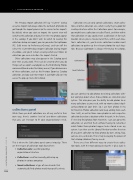
Collection sets can only contain collections, smart collec- tions, or other collection sets, which is why they’re good for creating structure within the Collections panel. For example, you might have a collection set called Travel, and then within that collection set you could create a collection set for each location where you’ve traveled and then, within each loca- tion’s collection set, you’d create collections and/or smart collections to gather up the relevant photos for each loca- tion. Because Lightroom is always referencing the photos,
Collection Set
Smart Collection
Collection
you can continue to add photos to existing collections with- out worrying about where those photos are stored on your system. This also gives you the ability to add photos to as many collections as you need, with no worries about dupli- cating photos on your drive. So, I can have photos in my All Yosemite Photos collection (and keep adding more each time I visit), as well as those same photos in each respective collection based on a location within the park. In the future, if I need to find photos from Yosemite, I can just go to this collection set and find them without having to remember which folder those photos happen to be stored in on my system. I can then use the Library Filter bar to refine the view of any given collection to show photos by date, rating, flag, camera, lens, and so on. This is truly leveraging the power of that catalog (database) for my needs.
There are a few different ways to create these collec- tion tools, with the most obvious being the + (plus sign) in
024
› › lightroom magazine › issue 28


