


Page 23 - Lightroom Magazine Issue 28
P. 23
› › lightroom magazine › ›
I’ve written a lot about the Lightroom catalog in recent issues with the intention of helping you stay in control of your library and avoid common mistakes. In this issue, I want to help you get the most out of a powerful feature, called collections, that only exists because of that catalog.
A key piece of data stored in the catalog is the location of each imported photo on your system, stored as a path, from the volume name (PC: drive letter) to the individual file- name and all the folders in between. This allows Lightroom to reference where each photo is stored, and when needed for working in the Develop module or exporting copies, the program can access the photo in question and do the job at hand. Because Lightroom only references each photo, it can leverage that data to easily group photos together in a variety of ways using these things called collections.
Some people find it easier to think of collections like musi- cal playlists in a music app, where you can create a playlist and add as many songs to it as you wish, and you know that the music app is only referring to each song file without regard to where that song file is stored on your computer. Likewise, you can have an infinite number of playlists, and you can even add the same song to every playlist, and at no time does the music app duplicate the actual song file on your computer or move it to a different location. Collections behave exactly the same way. This makes collections an incredibly powerful tool for organizing and accessing your photos beyond the physical storage aspect of folders.
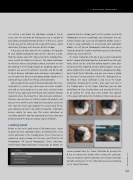
catalog panel
Before we get to the aptly named Collections panel, I want to point out that Lightroom comes pre-loaded with a few useful collections in the Catalog panel. Even if you have a completely empty catalog, like this one, you’ll find the All Photographs, All Synced Photographs, Quick Collection, and Previous Import collections ready to go. As photos are
imported into the catalog, you’ll see the number next to All Photographs increase accordingly, and clicking on that col- lection will give you access to all imported photos at once. If you’re using Lightroom CC and syncing with Lightroom Mobile, the All Synced Photographs collection gives you a running tally of the number of photos synced, and provides similar easy access to them.
The Quick Collection is for when you need to temporarily gather a group of photos together and hold them while you work, which can be useful for pulling together some pho- tos to be printed, exported, or some other purpose. You can add a photo to the Quick Collection by dragging and drop- ping it onto Quick Collection, and you can remove a photo by selecting it and pressing the Delete (PC: Backspace) key. By default, the Quick Collection is also set as the Target Collection, denoted by the small + (plus sign) next to it in the Catalog panel. As the Target Collection, you can also add photos to it by selecting them and pressing the B key, or by clicking the small, gray circle button that appears in the upper-right corner of a thumbnail. Conversely, you can
remove photos from the Target Collection by pressing the B key or clicking that button while viewing the collection. You can designate another collection as the Target Collection by Right-clicking on it in the Collections panel and choosing Set as Target Collection.
023
› › kelbyone.com


