


Page 53 - Lightroom Magazine Issue 27
P. 53
› › lightroom magazine › ›
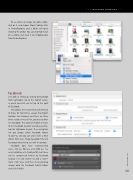
To see where an image has gone, Right- click on it, and choose Show Published File in Finder/Explorer, and a folder will open showing the photo. You can also Right-click on a photo and View it on Dropbox.com from Finder/Explorer.
facebook
Let’s look at setting up sharing to Facebook from Lightroom. Go to the Publish Servic- es panel and click on Set Up to the right of Facebook.
The options here are pretty much identical to those for Hard Drive, except that Export Location has changed, and there are three other sections instead. First, you must autho- rize Facebook. This connects Publish Services to the Facebook Account and gives permis- sion for Lightroom to post. The next option lets you choose which Facebook Album to post to, and you can also Create a New Album from here. Finally, Facebook Title tells Facebook what title to use with the photos.
Facebook does have recommended sizes—720 px, 960 px, and 2048 px. I’ve selected 960 px at a Quality of 80, but these will be compressed further by Facebook anyway. I’ve also chosen to add a water- mark. Click Save, and then click-and-drag images onto the Facebook Publish Folder and click Publish.
053
› › kelbyone.com


