


Page 52 - Lightroom Magazine Issue 27
P. 52
› › lightroom magazine › ›
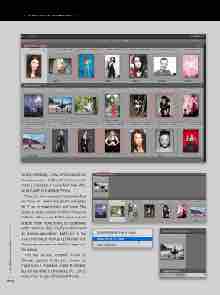
During publishing, a new section appears in the preview area—Published Photos. As each photo is published, it moves from New Pho- tos to Publish to Published Photos.
There are two more sections to see before we move on. Select any photo and press the V key to make it black and white. This creates a section called Modified Photos to Re-Publish. Now, some Publish Services don’t support image replacement, but publishing to the hard drive does. So, if you don’t want the changes republished, Right-click on the photo and choose Mark as Up-To-Date from the pop-up menu to remove the image from this section.
The last section, Deleted Photos to Remove, appears when you remove an image from a Published Folder. If needed, you can use Undo (Command-Z [PC: Ctrl-Z]) to return an image to Published Photos.
052
› › lightroom magazine › issue 27


