


Page 51 - Lightroom Magazine Issue 27
P. 51
› › lightroom magazine › ›
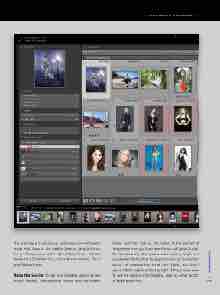
The final step is to click Save, and a new icon will appear under Hard Drive in the Publish Services panel (click on the left-facing arrow to the right of Hard Drive)—it looks similar to a Collection icon, but with sync arrows. This is your Publish Folder.
Using the Service: To use your Dropbox service (or any Publish Service), click-and-drag photos onto the Publish
Folder, and then click on the folder. At the top left of
the preview area, you’ll see New Photos to Publish (Publish
Services has a few other preview area sections, which we’ll
see shortly). Notice that the Export button (at the bottom
left of the window) has turned into Publish, and there’s
also a Publish button at the top right of the preview area.
To get the photos onto Dropbox, click on either button
to begin publishing. 051
› › kelbyone.com


