


Page 49 - Lightroom Magazine Issue 26
P. 49
› › lightroom magazine › ›
I’ve been able to tether into my Nikon D750 no problem, but then all of sudden it just stopped working. I can’t get it to recognize my camera for tethering. Any idea what’s up?
I have a pretty good idea. I’ll bet you have a memory card in your D750, and for some reason Lightroom doesn’t like it if you have a memory card in a Nikon camera while you tether. I’m guessing that previously you didn’t have a card in there, so try tethering without any memory cards in the camera. My bet is it’ll work now. By the way, this doesn’t hold true for Canons. In fact, Canons actually write a copy of the shot to the memory card, so you can absolutely leave your memory card in the camera if you shoot Canon.
I often apply a color profile to my images in the Camera Calibration panel, but every once in a while when I go to apply a profile the only choice is Embedded. Why is that?
You can only apply color profiles to RAW images. JPEG images already have the profile you chose in-camera embedded into the file; that’s why instead of being able to embed a profile, it says Embedded. I think what’s happening when you only see Embedded as a choice is that the image to which you’re trying to apply a profile is a JPEG or a TIFF, rather than a RAW.
In the Print module, I used to be able to display image information by pressing the letter I, but it doesn’t work anymore. Even if I go up to the View menu and choose Show Info Overlay, nothing happens. What’s up?
It’s a bug, and it’s one that’s been there for a while. I sent a note about it to the Lightroom team, and hopefully, it’ll get picked up in an update (Adobe usually picks up a few bug fixes in each update, so maybe we’ll get lucky soon).
How do you process an HDR image without bringing up the HDR Merge Preview window? I just want to use the same settings I always use, and process my images in the background,
so I don’t need to see that preview window every time.
It’s actually a keyboard shortcut. Select the images you want to combine into a single HDR image, then press Shift-Control-H (PC: Shift-Ctrl-H).
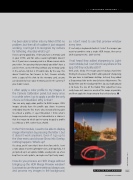
I had heard they added sharpening to Light- room Mobile, but I can’t find it anywhere in the app. Did they actually add it?
Well, yeah, kinda. The reason you’re having a hard time finding it is because they didn’t add regular ol’ sharpening like you have in Lightroom desktop. Instead, they added a Sharpening slider to the two Selective Adjustments: The Radial Filter and the Graduated Filter. So, our workaround is to make the size of the Radial Filter adjustment area really huge so it covers as much of the image as possible, and then apply the sharpening to that selected area. ■
CLICK TO RATE 049 ALL IMAGES BY SCOTT KELBY
› › kelbyone.com


