


Page 48 - Lightroom Magazine Issue 26
P. 48
› › lightroom magazine › ›
Question&s Answers
I heard Adobe added a Reference View image feature in the latest Lightroom CC update. Didn’t we already have that in Compare mode? You could put an image on the left side, and then make changes to the image on the right. Why is this better, and why would I use it?
You do have a point in that Compare mode will let you compare two images and let you edit one to match the other, but there’s a serious drawback—it doesn’t work in the Develop module. Compare mode switches you to the Library module, so all you can use is Quick
SCOTT KELBY
Develop, which is pretty limiting. You can find Compare under the View menu, or by pressing the letter C on your keyboard.
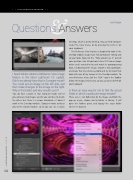
The Reference View feature is designed to work in the Develop module so you have full control over editing and all your tools. Now, for the “Why would I use it” part of your question. I can tell you how I’d use it: If I saw an image online and I wanted to try and match its postprocessing look, I’d download the image, import it into Lightroom, and make that my reference photo and try to match that look with one of my images in the Develop module. To enter Reference View, click the “R | A ” icon in the Toolbar below the image preview area, or you can press Shift-R on your keyboard.
Is there an easy way for me to find the actual folder in which a particular image resides? There sure is. Just Right-click on the image, and from the pop-up menu, choose Go to Folder in Library. It will open the Folders panel and display the exact folder where it’s located.
048
› › lightroom magazine › issue 26


