


Page 51 - Lightroom Magazine Issue 26
P. 51
› › lightroom magazine › ›
creating smart previews on export
You can also create smart previews when you export a set of photos as a new catalog (File>Export as Catalog). In the Export as Catalog dialog, click the Build/Include Smart Previews checkbox.
smart preview status on
image thumbnails
In Grid view, badges on the upper-right corner of the image thumbnails also indicate whether an image is missing or offline, or whether there’s a smart preview for that file.
use smart previews for faster develop module performance
In the 2015.7 / 6.7 release of Lightroom a new feature allows you to use smart previews in the Develop module, even if the original RAW file is present. The reasoning for this is that there can often be a noticeable speed improve- ment when editing the smart preview vs. the original RAW file. To turn this on, go to the Performance tab of Light- room (PC: Edit)>Preferences and click the checkbox for Use Smart Previews Instead of Originals for Image Editing. Depending on how your particular system is configured in terms of processor speed, the graphics processor and RAM, as well as the nature of the edits you’re making, will determine your mileage as to how much of a performance improvement you see.
smart preview status in
the histogram panel
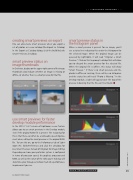
When a smart preview is present for an image, you’ll see a status line indicating this under the Histogram for the selected image. When the original image can be accessed by Lightroom, it will read “Original + Smart Preview.” Click on this to prompt a dialog that will allow you to discard the smart preview for the selected file. When the original file is offline, this status will show
“Smart Preview.” If there’s no smart preview and the photo is offline or missing, there will be no histogram and the status line will read “Photo is Missing.” In the Develop module, a label will appear over the top of the preview indicating that the file can’t be found. ■
ALL IMAGES BY SÉAN DUGGAN
CLICK TO RATE
051
› › kelbyone.com


