


Page 12 - Lightroom Magazine Issue 26
P. 12
› › lightroom magazine › ›
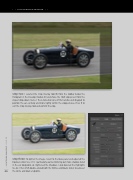
step two: I selected the Crop Overlay tool (R) from the toolbar below the Histogram in the Develop module (D) and chose the 16x9 crop preset from the Aspect drop-down menu. I then clicked on one of the handles and dragged to position the car centrally and more tightly within the cropped area. Press R to exit the Crop Overlay tool and commit the crop.
step three: To lighten the image, I went to the Basic panel and adjusted the Exposure slider to +1.10. I particularly wanted to bring out more shadow detail in the car bodywork, so I lightened the Shadows. I also lowered the Highlights to –42. I then Shift-double-clicked both the Whites and Blacks sliders to auto-set
012 the white and black endpoints.
› › lightroom magazine › issue 26


