


Page 90 - Photoshop User January 2017
P. 90
HOW TO ››
Tip: If you want to add the same layer style to another text layer, Right-click on the name of the layer style in the Layers panel, choose Copy Layer Style, then Right-click on the new layer, and select Paste Layer Style.
Lastly, InDesign and Illustrator will output the file with crop marks, which helps in getting the printed document trimmed accurately. Even if we output to PDF in Photoshop (the printer’s choice of format), we won’t have the ability to add crop marks and bleed, so it’s a good idea to add these if we want to see them. This is pretty easy to do—it’s a work- around, but it does work.
First, create a new layer above the topmost layer, dou- ble-click this new layer’s name, and label it “CROPMARKS.” Select the Rectangular Marquee tool (M), hold the Shift key for proportion, and drag out a selection around one of the top corners until it snaps to the crossing guides. After the first square selection, you can then hold the Shift key to add each additional corner until you have four marching- ant squares.
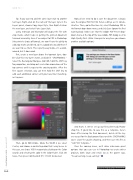
Then, go to Edit>Stroke. Make the Width 2 px, select Center, and choose a contrasting color that’s easy to see. In this case, we chose 100% magenta by clicking on the Color swatch and selecting the color in the Color Picker. Click OK twice, then press Command-D (PC: Ctrl-D) to deselect.
Now all we need to do is save the document. I always save the original PSD first for future editing, as it’s nonde- structive. Then, go to File>Save As, select Photoshop PDF in the Format drop-down menu, and click Save (ignore the first warning box). Make sure that the Adobe PDF Preset drop- down menu at the top of the Save Adobe PDF dialog is set to High Quality Print. (Note: Your printer may have you choose another available option.)
And that’s it. We’ve set up our first print-ready Photo- shop file. If you’d like to save this as a template, here’s how: After saving the final document, delete all the lay- ers except for the Background layer and the CROPMARKS layer. Leave the guides showing, and then save this file as “A4 Print Template.”
Over the coming issues, we’ll delve into more great options that you can use in Photoshop to create other projects, both large and small. So as the poster says, “Keep learning, keep earning.” ■
CLICK TO RATE
090
› › photoshop user › january 2017


