


Page 65 - Lightroom Magazine Issue 27
P. 65
› › lightroom magazine › ›
for Lightroom CC. Your previous catalog will remain as is. A new version of the catalog will be created in the same location and a number will be added to the catalog name (e.g., “My Catalog-2”). Once the update of the catalog is finished (and with Lightroom not running), I recommend changing the name of the newly updated catalog so it’s different from the previous catalog name. I typically put the version of Lightroom in the catalog name to help me keep straight which version it’s for (e.g., Main Photo Catalog LRCC2015). You’ll also need to rename the Previews and the Smart Previews files the same way (see below).
renaming and temporarily archiving the previous catalog
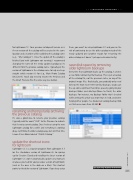
It’s also a good idea to rename your previous catalog. I typically add the word “OLD” to the filename to indicate that it’s not a current catalog. Once I’ve been using the new Lightroom catalog for a while and everything is working okay, I will throw the older catalog away, but until that time I move it to a folder labeled “Old LR Catalog.”
update the shortcut icons
for lightroom
Lightroom CC is a separate program from Lightroom 5.7 (or the standalone version of Lightroom 6). So signing up for Creative Cloud and installing the latest version of Lightroom CC won’t automatically update any shortcuts or aliases you had for your previous version of Lightroom (such as the ones in the dock on a Mac). This shortcut points to the older version of Lightroom. If you keep using
them, you won’t be using Lightroom CC and you run the risk of continuing to use the older catalog instead of the newly updated one (another reason for re-naming the older catalog so it doesn’t get opened inadvertently).
save disk space by removing
older lightroom backups
Every time that Lightroom backs up the catalog, it creates a new folder containing that backup. This is just a backup of the catalog file, not the previews cache, or any of the original image files. Realistically, you probably only need to keep the most recent three or four backups, so you can free up some significant hard drive space by going to your backups folder and deleting (Move to Trash) the older backups. For instance, my Backups folder that I checked while writing this article was more than 3.5 GB, and when helping other people I’ve discovered catalog backup fold- ers that were more than 30 GB! ■
CLICK TO RATE
065
› › kelbyone.com


