


Page 64 - Lightroom Magazine Issue 27
P. 64
› › lightroom magazine › ›
Tip&sTricks
upgrading to lightroom cc
Recently, I’ve assisted several clients who have finally made the switch to Lightroom CC from Lightroom 5.7. This process revealed some useful tips to pass along for
anyone else who’s upgrading to Lightroom CC.
will your operating system run lightroom cc?
The first thing to do is verify whether or not your com- puter’s operating system will run the current version of Lightroom. If not, then the operating system will need to be updated before you move to Lightroom CC. For instance, on the Mac, the latest version of Lightroom (2015.8 or 6.8) requires 10.10 Yosemite or higher (though earlier versions of Lightroom CC or 6 will run on 10.8 or 10.9). If you’re someone who only updates your computer’s OS when you absolutely have to, then this may be one of those times, especially if you need Lightroom support for a new camera. You
SEÁN DUGGAN
can check the minimum OS requirements at helpx .adobe.com/lightroom/system-requirements.html.
back up the catalog before updating
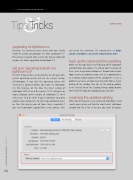
Make sure that you have a recent backup of the Lightroom catalog before you update. It’s unlikely you’ll need one of these, since the previous catalog isn’t changed when Light- room creates an updated version, but it’s a good practice, as is having regular updates of the catalog file in case a problem ever arises and you need to restore from a recent backup of the catalog. You can set the backup options in the General tab of the Catalog Settings dialog (below). We’ll revisit the topic of catalog backups a bit later.
renaming the updated catalog
When you first launch a new version of Lightroom, it will search your system and find the most recent Lightroom catalog and ask if this is the one you want to update
064
› › lightroom magazine › issue 27


