


Page 63 - Lightroom Magazine Issue 27
P. 63
› › lightroom magazine › ›
Q: I have a collection set with a number of other collections inside it. Is there a way to turn that collection set into its own separate catalog, with everything still intact?
A: Absolutely (and this feature was added fairly recently)! First, click on the collection set you want to turn into its own catalog, then go under Lightroom’s File menu, choose Export as Catalog, and you’re done. It will now be its own new catalog. You can also Right-click directly on the name of the collection set in the Collections pan- el and choose Export this Collection Set as a Catalog.
Q: I’ve been using Lightroom Web and while I like the fact that I can use it for client proofs and for sharing galleries, getting around it seems a bit clunky. Am I missing something?
A: Well, I’m not sure you’re missing something, but there’s definitely something kinda hidden that will make the
experience much more “Lightroom-like” and less clunky. You can use many of the exact same keyboard short- cuts in Lightroom Web that you can in the Lightroom program, which is weird because you’re on a webpage, but Adobe made it work. Try getting around using the keyboard shortcuts you already know and you’ll see a big difference.
Q: In Photoshop, when I use the Levels command, there’s a way I can see a preview of which areas are being clipped in the shadows or highlights as I drag the Levels sliders. Is there anything like that in Lightroom?
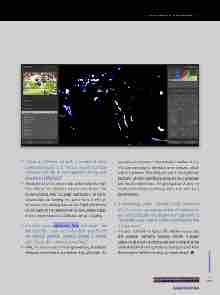
A: You bet! Just hold the Option (PC: Alt) key as you drag the Exposure, Highlights, Shadows, Whites, or Blacks sliders in Lightroom, and the screen will change to either solid white (for showing shadow clipping) or solid black (for showing highlight clipping, as shown above). ■
CLICK TO RATE
ALL IMAGES BY SCOTT KELBY
063
› › kelbyone.com


