


Page 35 - Lightroom Magazine Issue 27
P. 35
› › lightroom magazine › ›
saving to xmp metadata
Okay, we’re as ready as we can be to have Lightroom write all that data to each photo’s XMP metadata. To do this, go back to the Catalog panel and click All Photographs. Select all of the photos and go to Metadata>Save Metadata to Files. You might see a little dialog pop up letting you know that sidecar XMP files will be created for all non- DNG RAW files, and for the rest of the supported photo file formats, Lightroom will write directly to the photo itself. Click Continue. A progress bar will begin; the amount of time will vary with the size of your catalog. It shouldn’t take too long though. Have patience.
create a new catalog
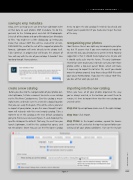
Before you dive into the reorganization of your photos out- side Lightroom, I’d take a moment to create a new catalog via the File>New Catalog menu. Give this catalog a mean- ingful name, and make sure it’s created in a logical location that you can easily find again. (This will be where you later re-import all your photos, so give this some thought.) Light- room will relaunch with this new (empty) catalog. Take a moment to set this catalog as the new default catalog by going to Preferences>General (Figure 7), and choosing this specific catalog as the default. That way, the next time you launch Lightroom, it will be this catalog that opens, and not the old one. (Note: You can use the File>Open Catalog
menu to open the old catalog if needed.) Go ahead and import your keyword list (if you made one) to get that out of the way.
reorganizing your photos
I don’t believe there’s one right way to reorganize your pho- tos, but I’ll assume that if you were motivated enough to take on this task, you already have a system in mind. My only suggestion is that it should make logical sense to you and it should easily scale into the future. The only Lightroom- related tip I want to give you is to make sure you store those photos within a top-level parent folder, which will make it super-easy to import the lot later. Oh, and if you should move the photos around, keep those sidecar XMP files with your source RAW photos. If you lose the sidecar XMP files, you lose all that work you just did.
importing into the new catalog
When you have all of your photos organized the way you’ve always wanted, in the location you want them to remain, it’s time to import them into the new catalog you created earlier.
step one: Open Lightroom (make sure it’s the right catalog).
step two: Click Import.
step three: In the Import window, expand the Source panel on the left, and select the top-level parent folder con- taining all of your photo subfolders. Turn on the Include
Figure 7
035
› › kelbyone.com


