


Page 36 - Lightroom Magazine Issue 27
P. 36
› › lightroom magazine › ›
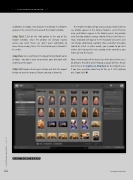
Subfolders checkbox. You should see all photos in all folders appear in the center Preview area of the Import window.
step four: Click on the Add option at the top of the Import window. Since the photos are already exactly where you want them, we don’t want Lightroom to move them or copy them. The Destination panel shouldn’t be visible.
step five: Set everything in the Apply During Import panel to None. You don’t want to overwrite your old work with anything at this point.
step six: Double-check your settings and click the Import button to start the process (finger-crossing is allowed).
The Import window will go away and you should start to see photos appear in the Library module’s center Preview area, and folders appear in the Folders panel. Any photos with Develop module settings should still have the final set- tings, keywords will appear in the Keyword List panel, and star ratings, color labels, captions, titles, and other metadata should be intact. In other words, you’re good to go. Best wishes for keeping this new catalog under control as you move on into the future.
Now, I tried to cover all the bases I can think of, but there are a lot of bases. Read this article through a couple of times. Reach out to me at the Lightroom Help Desk on the KelbyOne site if you have questions about any of this, or if I left anything out. Good luck! n
CLICK TO RATE
036
ALL IMAGES BY ROB SYLVAN
› › lightroom magazine › issue 27


