


Page 20 - Lightroom Magazine Issue 27
P. 20
› › lightroom magazine › ›
opening photos as
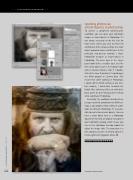
smart objects in photoshop To achieve a completely nondestructive workflow, you can open your Lightroom images as smart objects in Photoshop. It’s not always necessary to do this, but for those times where you wish to retain full control over all the image settings, the smart object approach makes a lot of sense. In this particular step-by-step example, I chose Photo>Edit In>Open as Smart Object in Photoshop. The base layer in the Layers panel looked like a regular layer, but the little smart object icon in the bottom-right corner (circled) indicates that if I double- clicked the layer thumbnail, it would open the RAW original in Camera Raw. This meant that while working in Photoshop, I could edit the RAW settings at any time. For example, I could have tweaked the Radial Filter softening effect, or edited the Basic panel or Split Toning panel settings while working in Photoshop.
Essentially, the workflow described here lets you retain full control over the RAW set- tings as you progress from editing in Light- room to editing in Photoshop. It’s even pos- sible to create linked smart objects. You can have a smart object layer in a Photoshop document linked to an original managed in your Lightroom catalog, which means you can use the Lightroom Develop module to adjust the image edits. The procedure is a little complex, but one I intend to cover in a future Lightroom Magazine article. n
CLICK TO RATE
020 ALL IMAGES BY MARTIN EVENING
› › lightroom magazine › issue 27


