


Page 38 - Lightroom Magazine Issue 26
P. 38
› › lightroom magazine › ›
038
Click-and-hold on the image for a before view
make changes on the fly. Press New to start a new Brush layer, which can have entirely different settings. To go back to a previ- ous layer, click the pin to make it active.
You can have three brushes: A, B, and Eraser. Set A and B to use different settings for quick changes. A typical setup is large and soft for A and small and hard for B. You can also hold down Option (PC: Alt) to temporarily change to the Eraser.
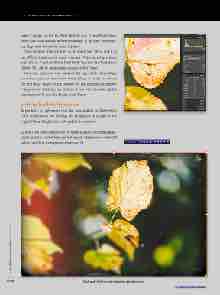
Here I’ve darkened two parts of the leaf. With Show Mask turned on, you can see where I’ve brushed. A white pin shows the first brush layer. On the bottom left just outside the preview image is a pin that you can click on if you want to make global adjustments. To exit the Brush, click Close.
getting back to lightroom
To get back to Lightroom, click the Save button on the bottom right, where all of the settings will be applied to a copy of the original file and Lightroom will update the preview.
So that’s the new Exposure X2. It makes a great standalone appli- cation and has a lot of features not found in Lightroom, while still lacking a little in management features. ■
CLICK TO RATE
ALL IMAGES BY SEAN McCORMACK
› › lightroom magazine › issue 26


