


Page 56 - Lightroom Magazine Issue 28
P. 56
› › lightroom magazine › ›
Tip&sTricks
The Metadata panel in Lightroom CC, and metadata in general, offers a lot of interesting and useful functionality. In this article, we’ll take a look at this often-overlooked panel, and some of the ways you can take advantage of the metadata in your files.
what is metadata?
Metadata is simply information about your photos. Some of this is recorded as EXIF data by your camera and embed- ded in the file when the shot is saved to your memory card. This can include such things as the date and time the image was made, exposure and lens details, camera serial number, and even GPS data if your camera has that fea- ture, or if it’s a shot from your phone. Other metadata can be added after the fact. The most common types of user- added metadata in Lightroom are probably keywords and copyright notices (embedded in the file, not added as a visible watermark), but there are many other possibilities.
The time that you take adding additional metadata to your images can pay off by making them easier to find, ensuring that your copyright and contact info is added to images upon import, or hooking into other functionality in Lightroom that can access the metadata.
applying metadata in the import dialog
The best place to apply some user-added metadata is in the Import window
right when you import
photos into your Light-
room catalog. In the Apply During Import panel, you can apply your copyright info, or other information you’ve saved as a meta- data preset, as well as keywords. Keep in mind that the keywords that can be applied to an
056 entire group of images
SEÁN DUGGAN
at the import stage will most likely be limited to basic terms for the location or event. And, if the pictures you’re importing cover many different days and subjects, you may not be able to apply any keywords that work for all the photos.
filtering the view of the metadata panel
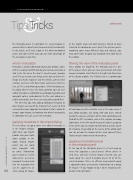
Once photos are imported, the Metadata panel is one of the places where you can view and interact with your images’ metadata. You’ll find it in the right side Panel area of the Library module. The Default view is a combination
of Lightroom-specific metadata, such as the copy name (if any), folder location, star rating, EXIF data that’s embed- ded by the camera, and some of the more commonly used fields of the IPTC metadata, such as title, caption, and copy- right notice. In the left side of this panel header is a pop-up menu where you can choose to show only a specific subset of metadata. Depending on the nature of the photo work you do, or how the images will be used, some of these choices may be more relevant than others.
applying a metadata preset
in the metadata panel
At the top of the Metadata panel is a Preset pop-up menu for applying a saved preset. When you’re in Grid view, and have several images selected, you can easily apply the saved metadata preset to all of the selected images. This is an efficient way to batch apply a copyright notice and contact information to a group of images—if you forgot to do it when importing the photos into Lightroom.
› › lightroom magazine › issue 28


