


Page 54 - Lightroom Magazine Issue 28
P. 54
› › lightroom magazine › ›
Question&s Answers
SCOTT KELBY
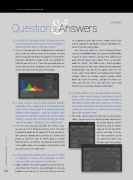
Q: I’m a bit of a histogram freak. Is there some way to know precisely which part of the histogram is affected by the sliders in the Basic panel?
There is: If you go up to the Histogram panel and hover your cursor over different parts of the graph, not only will it tell you (directly below the graph) the name of the slider that controls that region, it will even highlight the slider for you. Better yet, if you click-and-drag your cur- sor on any part of the histogram itself, it will move the sliders that represents that part of the graph.
isn’t supported, and I don’t believe Adobe will be add- ing this support to Lightroom 6, only to Lightroom CC, which they continually update.
One thing you might try is free tethering software (such as Sofortbild for Mac, or Canon’s free EOS Utility if you’re a Canon shooter), and have that software put your tethered images into a folder. Then, set up Light- room to “watch” that folder (with a watched folder, anything you put into it gets imported into Lightroom automatically). You do this by going under the File menu, under Auto Import, and choosing Auto Import Settings. When the window appears, choose which folder you want it to watch, configure the other set- tings, and click OK. Then, go under that same Auto Import menu and choose Enable Auto Import.
Q: I find the sliders in the Develop module a little too broad—when I want to make a small move in one di- rection or the other, even with a small movement of the slider, it moves more than I want it to. Is there a way (maybe a keyboard shortcut) that gives me finer control over the sliders so I don’t have to manually type in the number I want?
A: This might sound weird, but what you need are longer sliders, so you have finer control (smaller adjustments) when you drag the sliders. To do that, click the divider edge on the left side of the panels and drag it to the left. This expands the size of the panel and sliders, and that gives you finer control.
A:
Q:
A:
Q: A:
Is there a way to stop the White Balance Selector eyedropper from snapping back to the Basic panel when I click it in the image? If I’m experimenting with different white balances, I wind up clicking once, going back to the basic panel to get the tool again, clicking a second time, and then starting the whole “dance” over again. There’s got to be a better way!
I feel the same way you do about that feature. Luck- ily, you can turn it off by pressing the letter T on your keyboard to toggle on the toolbar (if it’s not already vis- ible) along the bottom of the preview area (where your photo is), and then, with the White Balance Selector tool (W) active, turn off the checkbox for Auto Dismiss in the toolbar. Now, the eyedropper will stay active until you click it back in its home base.
Ijustboughtanewcamera,andIcan’tgetittotether to Lightroom. Is there a list somewhere of which cameras Lightroom supports for tethering?
Adobe publishes the list of supported cameras for teth- ering here. But if you’re using Lightroom 6 and you bought a new camera, it’s very likely that your camera
054
› › lightroom magazine › issue 28


