


Page 32 - Lightroom Magazine Issue 27
P. 32
› › lightroom magazine › ›
preparations
Knowing what’s at stake, let’s go through the things you should do before you start over. First, have a good backup of your catalog and of your photos. This is critical. You want the worst thing that can happen to be that you’re right back where you started. This will give you some piece of mind, and the freedom to roll up your sleeves and get it done.
Next, you’ll want to try to resolve all (or as many as pos- sible) instances of offline/missing files from your catalog. The reason for this is that Lightroom can’t write from the catalog to each photo’s XMP metadata if Lightroom can’t find/access the photo. If Lightroom can’t write to the photo’s XMP meta- data, then you’ll lose all the data about that photo stored in the catalog. I’ve written an article that details all of the ways to reconnect those missing/offline photos (“Reconnecting Missing Folders and Photos in Lightroom CC”) for anyone who needs help there.
Okay, now that all missing/offline files issues have been resolved, it’s time to decide what you want to do about the things that can’t be written to XMP metadata. I’ll also show you the steps you can take if you want to try to convert some of those things to a data point that can be written to XMP. Note, you don’t have to do all of the things I’m about to describe, only the ones that matter to you and your workflow. For instance, if you’ve never used flags, just skip that part.
flags
If you use flags and you want to preserve those in your new catalog, you can manually convert those flags to star ratings. If you currently use star ratings as part of your work- flow, then you could apply a color label instead. Basically, all you’re doing is filtering all photos by Pick flag status in Grid view, then selecting all of the flagged photos, and applying a star rating (or color label, if that works better) that represents the Pick flag for this purpose. Later, when you import the photos into the new catalog you could even convert them back to flags if you wished.
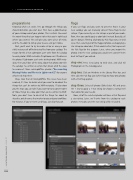
step one: Press G to jump to Grid view, and click All Photographs in the Catalog panel.
step two: Click on Attribute in the Library Filter bar, and then click the Pick flag icon (white flag) to show only photos with a Pick flag applied.
step three: Select all photos (Edit>Select All) and press the 1 key to apply a 1-star rating (or choose a rating level that works for your needs).
Now, all of the selected photos will have a Pick flag and a star rating. Later, we’ll write from the catalog to each photo’s metadata and the star rating will be included.
032
› › lightroom magazine › issue 27


