


Page 25 - Lightroom Magazine Issue 26
P. 25
› › lightroom magazine › ›
One final note: When this process runs, Lightroom creates an exact copy of the catalog as it exists at that moment, and then compresses that catalog into a zip file (as of Lightroom 6/CC). You’ll need to periodically go into the folder containing the backup copies and delete the oldest ones. If you ever had to recover from a backup, you would only use the most recent, right? I usually only keep the most recent two or three on hand.
migrating your photo library
With your catalog under control, you can now turn your attention to your photos, which is likely to be where the biggest mess can be found. The key to getting control over your photos is to understand the role of the Folders panel in the Library module. To that end, I urge you to read my “Under the Loupe” article in Issue 23 of Lightroom Magazine, which is entirely dedicated to the Folders panel. You’ll learn how to move folders, rename folders, remove folders, and find where your photo folders are actually located on your drive.
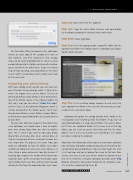
The one task I didn’t get to cover in that column that every Lightroom user should know is how to migrate your entire photo library from one drive to another drive. This is useful if you want to move your photo library from an internal drive to an external drive, or if you’re running out of space and want to move to a new, larger drive. The process is the same. Now, you could use Lightroom to move the folders, but I don’t recommend doing that when your entire library is at stake. Using a move command is too risky, because if anything goes wrong in the middle of the transfer you could lose data. I prefer a technique that involves copy- ing the folders to the new drive, and then later manually deleting the files from the original location. Here’s how:
step one: Open the Finder (PC: Explorer).
step two: Copy the entire folder structure with your photos
(as-is without changing the structure) to the other drive.
step three: Open Lightroom.
step four: Once the copy operation is complete, Right-click the topmost-level folder in the Folders panel in Lightroom and choose Update Folder Location.
step five: In the resulting dialog, navigate to and select that same topmost-level folder in the new drive (the one you just cop- ied over there), and click Choose.
Lightroom will update the catalog to point to the folder in the new location (and everything inside that folder). If you have all your folders/photos in a single parent folder, then you’re done, but if there are additional folders at the same level as that top folder, you just need to repeat Steps Four and Five for those folders. Give it a test run to make sure everything is as it should be before removing the originals.
Hopefully, that information will put you in a much more confident place with your Lightroom catalog and put you on the path to tak- ing control of your photo library. If you feel that maybe the mess is just too large and you’re looking for a way to start over from scratch, then tune in next issue when I devote my column to just that. In the meantime, send your Lightroom questions to the Help Desk by clicking the My Account button on the KelbyOne web- site, and then choosing Help Desk. ■
CLICK TO RATE
ALL IMAGES BY ROB SYLVAN 025
› › kelbyone.com


