


Page 23 - Lightroom Magazine Issue 26
P. 23
› › lightroom magazine › ›
Scott Kelby’s recent class on his Simplified Lightroom Image Management System has a lot of members thinking about how to clean up and take control of their Lightroom cata- logs. I know this because of the flood of questions that have come into the Help Desk asking about how to do these types of tasks. Whether you follow Scott’s system or not, all Lightroom users should be in control of their Lightroom catalogs, so I’m dedicating this column to giving you the skills you need to start the new year off on the right foot.
catalog location
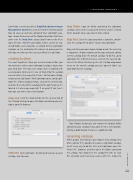
The most important thing you need to know before you do anything is where your Lightroom catalog is located on your hard drive. This may seem simple, but I’ve worked with several people who weren’t sure, or found that the catalog was not where they expected it to be. To find your catalog, simply launch Lightroom. With Lightroom open, go to Light- room (PC: Edit)>Catalog Settings, click on the General tab, and note the name of the catalog and the path to where it’s located. Is it where you expected? If so, great! If not, here’s how you can move it to a new location:
step one: Click the Show button on the General tab of the Catalog Settings to open the folder containing your cat- alog in your file browser.
step two: Quit Lightroom. If prompted to back up your catalog, skip for now.
step three: Copy the folder containing the Lightroom catalog (.lrcat) and its associated preview caches (.lrdata) to the location where you want it to be stored.
step four: Once the copy operation is complete, double- click the catalog file to open it back into Lightroom.
Now, whether you moved your catalog or not, this next step is important. I highly recommend that you manually config- ure this catalog to be the default catalog. To do this, go to Lightroom (PC: Edit)>Preferences, click on the General tab, and set the When Starting up Use this Catalog drop-down menu to the specific catalog you just opened (don’t use Load Most Recent Catalog).
Don’t forget to go back and remove the original folder containing your catalog if you copied it to a new location. Having a good backup in place is a good idea too.
renaming catalogs
When people start taking a closer look at their catalog, they often wonder if it’s possible to rename a Lightroom catalog, and it’s very easy to do this. First, quit Lightroom, open the Finder (PC: Explorer), and then open the folder containing the catalog. You should see the catalog file with an .lrcat file extension and its preview caches with the .lrdata file
023
› › kelbyone.com


